Set up the iOS Shortcut.
The iOS Shortcut saves to Notion with its own integration key. Follow the six steps once, on your iPhone or iPad. Then share any link to Dakira.
-
Step 1: Get the Shortcut
Open the iCloud link on your iPhone or iPad and tap Add Shortcut.
-
Step 2: Pick your database
Duplicate the template into your Notion workspace, or use your own database with these columns: Name (title), URL (URL), Thumbnail (files & media), Date Added (date), Tags (multi-select) and Notes (text).
-
Step 3: Create a Notion integration
Go to notion.so/my-integrations, choose "New integration", name it "Dakira" and save. Copy the "Internal Integration Secret". It starts with
ntn_orsecret_. -
Step 4: Give it access
Open the database, choose the ••• menu, then "Connections". Search for your integration and confirm.
-
Step 5: Fill in the Shortcut
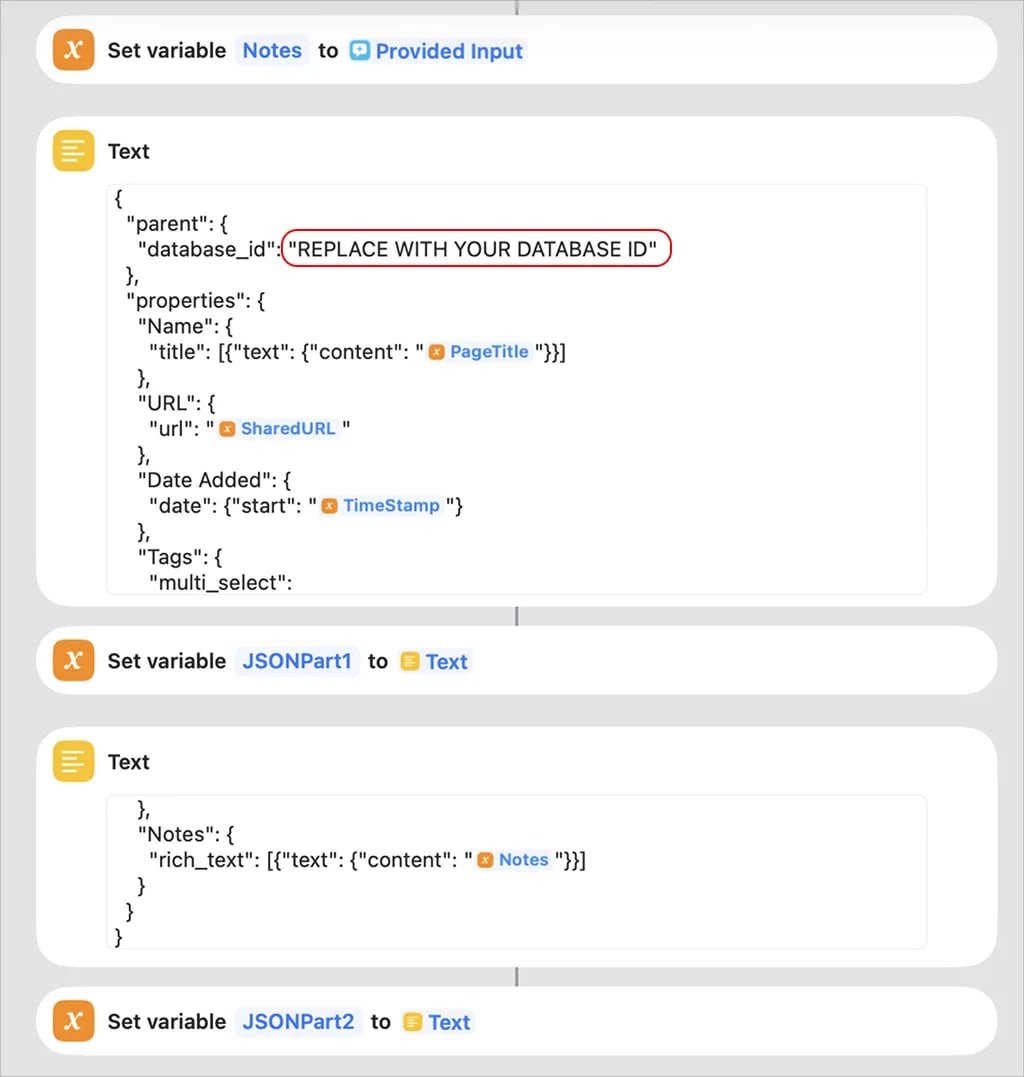
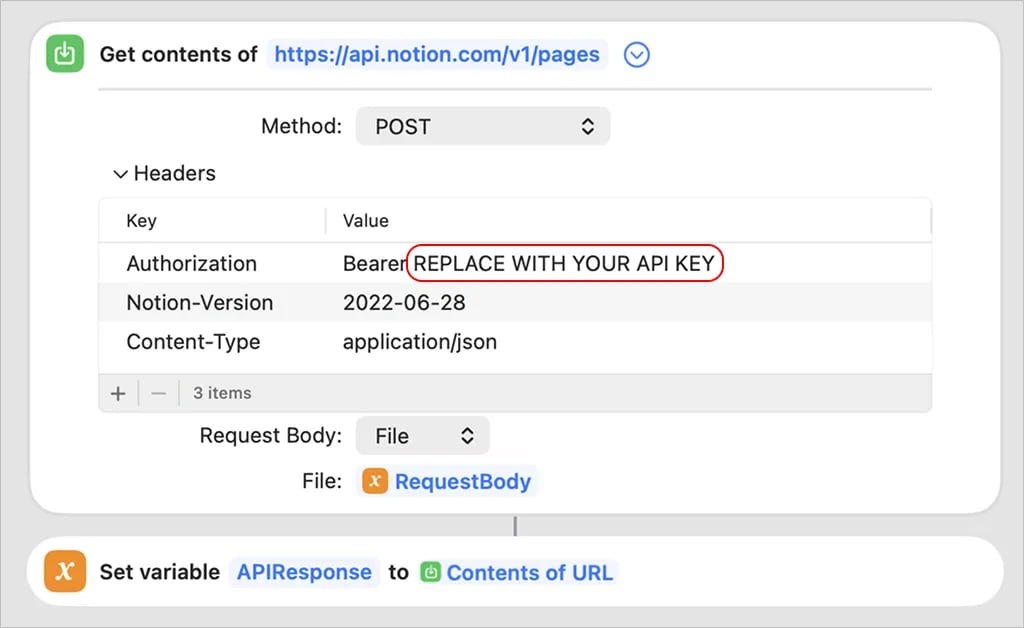
Open the Shortcut in edit mode. Replace
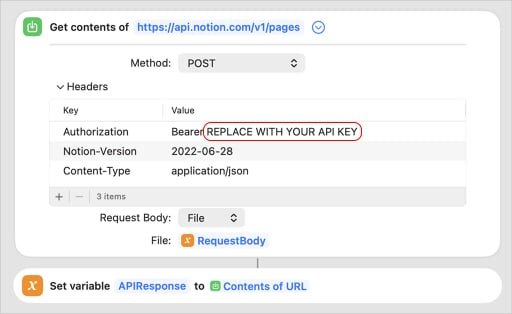
REPLACE WITH YOUR DATABASE IDwith your database ID, andREPLACE WITH YOUR API KEYwith your secret. Keep the space afterBearer.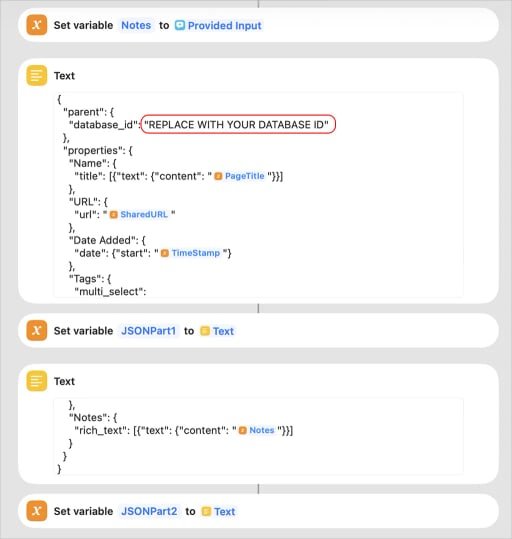
The database ID is the 32 letters and numbers just before
?v=in the database link. The box below finds it for you. -
Step 6: Save your first link
Share a link from Safari or any app, and choose "Save to Dakira."